App Store screenshots: the sizes, the rules and what makes people tap Get.
Every App Store and Google Play screenshot size, checked against Apple's and Google's help pages as of October 2026, a free checker that resizes yours, and why the first screenshot should match the TikTok that sent the visitor.
The phone in our TikTok slideshows shows your real App Store screens. Type your app for three post ideas, free.
Updated 26 October 2026
The short answer. To submit an iPhone app, Apple needs at least one screenshot for the iPhone with Dynamic Island (medium display): 1206 × 2622 or 1179 × 2556 pixels in portrait. If the app runs on iPad, add one 13-inch screenshot at 2064 × 2752 or 2048 × 2732. You can upload up to 10 per size, as JPEG or PNG without transparency.
Google Play wants at least two screenshots and up to eight per device type, between 320 and 3,840 pixels, with the long side no more than twice the short side. That last rule means a tall iPhone screenshot (19.5:9) is rejected on Play, so make a 1080 × 1920 version too.
App Store screenshot sizes, as of October 2026.
App Store Connect now names iPhone groups by screen type, not inches, so guides that say "6.9-inch" don't match the upload page. Here is how they line up.
iPhone and iPad, App Store Connect
Portrait sizes. Landscape is the same numbers swapped.
| Apple's group | Often called | Pixels |
|---|---|---|
| Dynamic Island, medium Required | 6.3" and 6.1"iPhone 14 Pro to 18 Pro, 17 | 1206 × 2622 1179 × 2556 |
| Dynamic Island, large | 6.9" and 6.7"Pro Max models, Plus, Air | 1320 × 2868 1290 × 2796 1260 × 2736 |
| Face ID, large | 6.5"iPhone XS Max to 14 Plus | 1284 × 2778 1242 × 2688 |
| Home Button, large | 5.5"iPhone 8 Plus and older | 1242 × 2208 |
| iPad 13" Required for iPad apps | 12.9" / 13"iPad Pro, iPad Air (M2 and later) | 2064 × 2752 2048 × 2732 |
| iPad 11" | 11"Scaled from 13" if missing | 1668 × 2388 1640 × 2360 |
The rules that trip people up
Most rejected uploads break one of these.
- Exact pixels only on AppleAn image one pixel off is refused. Resize or pad it; don't stretch it.
- No transparencyPNGs with an alpha channel fail on both stores. Flatten onto a solid background.
- Smaller sizes are scaled for youUpload the largest required set and App Store Connect scales it down.
- Play caps the shape, not the pixelsAny size from 320 to 3,840 px works if the long side is at most 2× the short side. For featuring, Google recommends at least 1080 × 1920.
- Tablets on PlayAt least four screenshots, 9:16 or 16:9, between 1,080 and 7,680 px.
Sources, read on 26 October 2026: Apple's screenshot specifications and Google's preview assets guide for Play. New iPhones add new groups, so the upload page has the final word.
Check a screenshot against every store slot.
Drop in a screenshot to see which store slots it fits, which need a resize and which need padding, then download a correctly sized copy. The image never leaves your device.
No image yet. The slot list works as a size reference meanwhile.
Choose a slot in the list, then download.
The safe set: 1320 × 2868 and 1206 × 2622 for iPhone, 2064 × 2752 for iPad, 1080 × 1920 for Google Play.
How many screenshots, previews and tests you get.
The slots you can fill on each store, and the tools for testing which version wins.
| App Store | Google Play | |
|---|---|---|
| Screenshots | 1 to 10 per display size | 2 to 8 per device type (4 minimum for tablets) |
| Preview video | Up to 3 per size and language, 15 to 30 seconds, 886 × 1920 on modern iPhones, up to 30 fps and 500 MB. Shown before the screenshots. | One YouTube link, public or unlisted, ads off. Only the first 30 seconds autoplay. |
| Pages per audience | Up to 70 custom product pages, each with its own URL, screenshots, previews and promotional text. They can be tied to search keywords and are reviewed. | Up to 50 custom store listings, which can also change the name, icon and description. |
| A/B testing | Product page optimization: up to 3 treatments of icon, screenshots and previews, one test at a time, up to 90 days. | Store listing experiments: up to 2 variants against the current listing. One default graphics test or up to five localized ones at a time. |
| Localization | Screenshots per language; others fall back to your primary language. | Graphics per language, testable with localized experiments. |
Sources: Apple's app preview specifications, custom product pages and product page optimization; Google's store listing experiments and custom store listings. As of October 2026.
What converts: the first screenshot does most of the work.
In search results and on the product page, people see the first two or three frames and decide. Far fewer swipe to the end. So build the first frame like a hook, not like a feature list.
Know what's in it before you buy it
Scan any label. Get a score in a second.
A benefit headline, about eight words
Say what changes for the person, not what the feature is called: "Know what's in it before you buy it", not "Barcode scanner". The hooks of 1,332 viral TikTok slideshows have a median of 8 words; a first screenshot gets the same glance.
One idea per frame, in story order
Frame one is the outcome, frame two the moment it happens, frame three the proof. Each caption should make sense alone.
Real UI, big enough to read
Show the screen that delivers the benefit, large enough that the key result reads at thumbnail size.
Proof you can stand behind
A rating, a press quote, a real user count. True, current and one line long.
Your TikTok and your store page should tell the same story.
Someone tapping through from a TikTok has already seen your app on a phone in the post. If the store opens on a different screen with a different promise, the thread breaks. Marketers call this message match.
of 1,332 viral slideshows in our library already show a phone or app screen on a slide.
is where the screen first appears in 65 of those 135. The median is slide 3.
put the screen on the cover. The hook comes first, the app second.
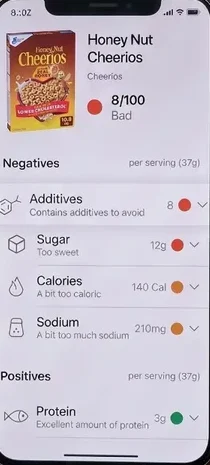
Food scanner. The post's twist is a low score on a "healthy" cereal. The store opens on that same scan screen.
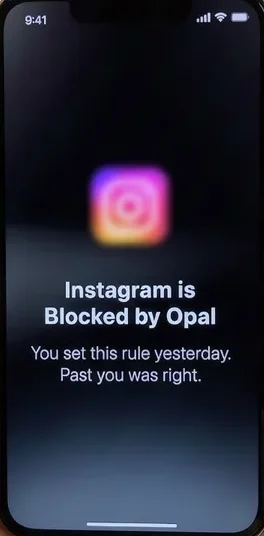
Screen-time app. The last study method is blocking your apps. The store leads with the block screen, not settings.
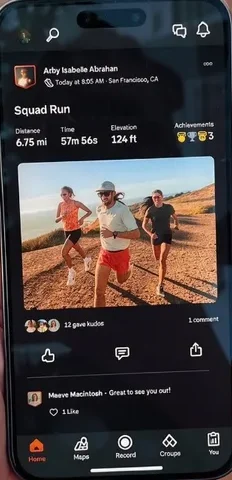
Running app. The slide's caption works as a store headline almost word for word.
Examples made by ClonBot to show what it does. We're not affiliated with these apps. The store frames are our mock-ups.
This is why ClonBot reads your App Store screenshots in the first place. When you paste your App Store link, it takes the screens from your listing, and the phone in each slideshow shows those real screens. The viewer sees the scan result on TikTok, taps through, and the store opens on the same screen. You can also upload screens yourself, or let a coding agent capture them from the simulator.
Two habits make the match tighter. Lead your store set with the screen your posts use most, since visitors have already seen it. And if your posts run on clearly different angles, give each its own custom product page and put that URL in your bio while they run (see adding a link to your TikTok bio). More on the TikTok side in TikTok slideshows for apps.
Templates and generators worth knowing.
ClonBot doesn't make store screenshots. These are the usual ways to make them, from free to fully automated.
Figma templates
Free App Store screenshot templates with frames at Apple's sizes. Best for full design control.
Screenshot generators
Web tools like AppLaunchpad and AppScreens frame your screens, add captions and export every size.
fastlane snapshot and frameit
Open-source tools that capture screens from UI tests in every language and frame them. Worth it once you localize; see our fastlane alternative guide.
The simulator and a checker
Simulator screenshots come out at exact device pixels. Use the checker above for Play and iPad versions.
App Store screenshot questions.
How many screenshots do I need for the Apple App Store?
At least one per required size: one for the iPhone with Dynamic Island (medium display) and, if your app runs on iPad, one for the 13-inch iPad. You can upload up to 10 per size. Whatever the count, put the strongest two first, since those are the ones most people see.
How can I resize screenshots for the App Store?
Use the checker on this page: drop the image in, pick a slot, and choose fit and pad (keeps the whole screenshot) or fill and crop. Plain resizing only works when the shape already matches; otherwise it stretches.
Why does App Store Connect say my screenshot is the wrong size?
Apple only accepts the exact pixel sizes listed for each group, and refuses images with transparency. Check pixels, not the inch label, and flatten PNGs onto a solid background.
What is the 6.9-inch screenshot size?
1320 × 2868 pixels in portrait (2868 × 1320 landscape). App Store Connect now lists it under iPhone with Dynamic Island (large display), together with 1290 × 2796 and 1260 × 2736.
Can I use the same screenshots on Google Play?
Not the tall iPhone ones. Google Play rejects images where the long side is more than twice the short side, and modern iPhone screenshots are about 2.17 to 1. Export a 1080 × 1920 version for Play.
Why is my screenshot file so big?
Full-resolution PNGs of photo-heavy screens often run to several megabytes. A high-quality JPEG is far smaller, and both stores accept it.
Keep reading
Your store page is ready. Now send people to it every day.
TikTok slideshows with your real App Store screens in them. Setup is free; plans from $99 a month for 30 posts.